Security Tools and Tasks
Veridise Audit Tools
For a quick tour of tools, see Tools. This section describes where to access tools and how to run them.
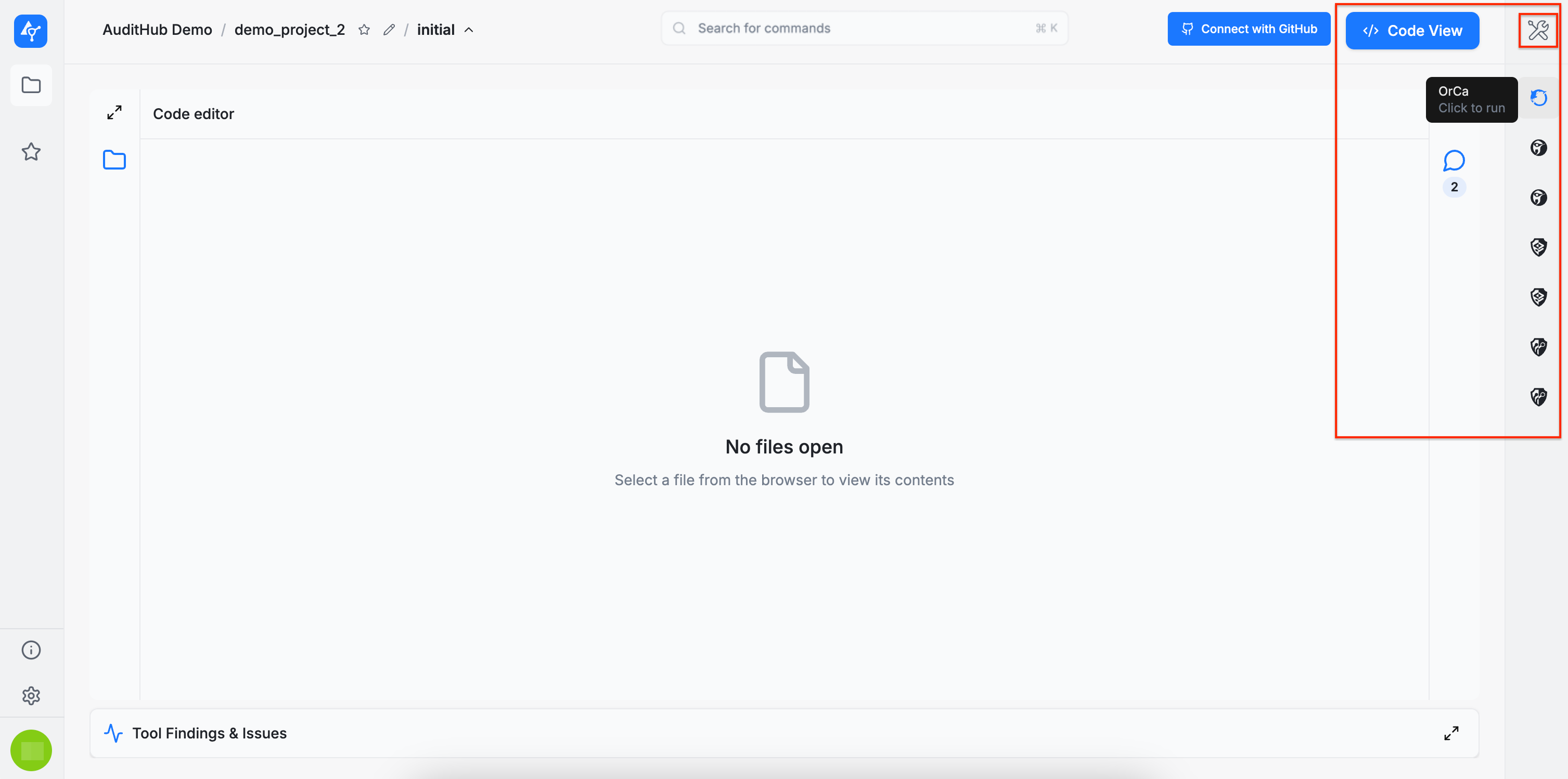
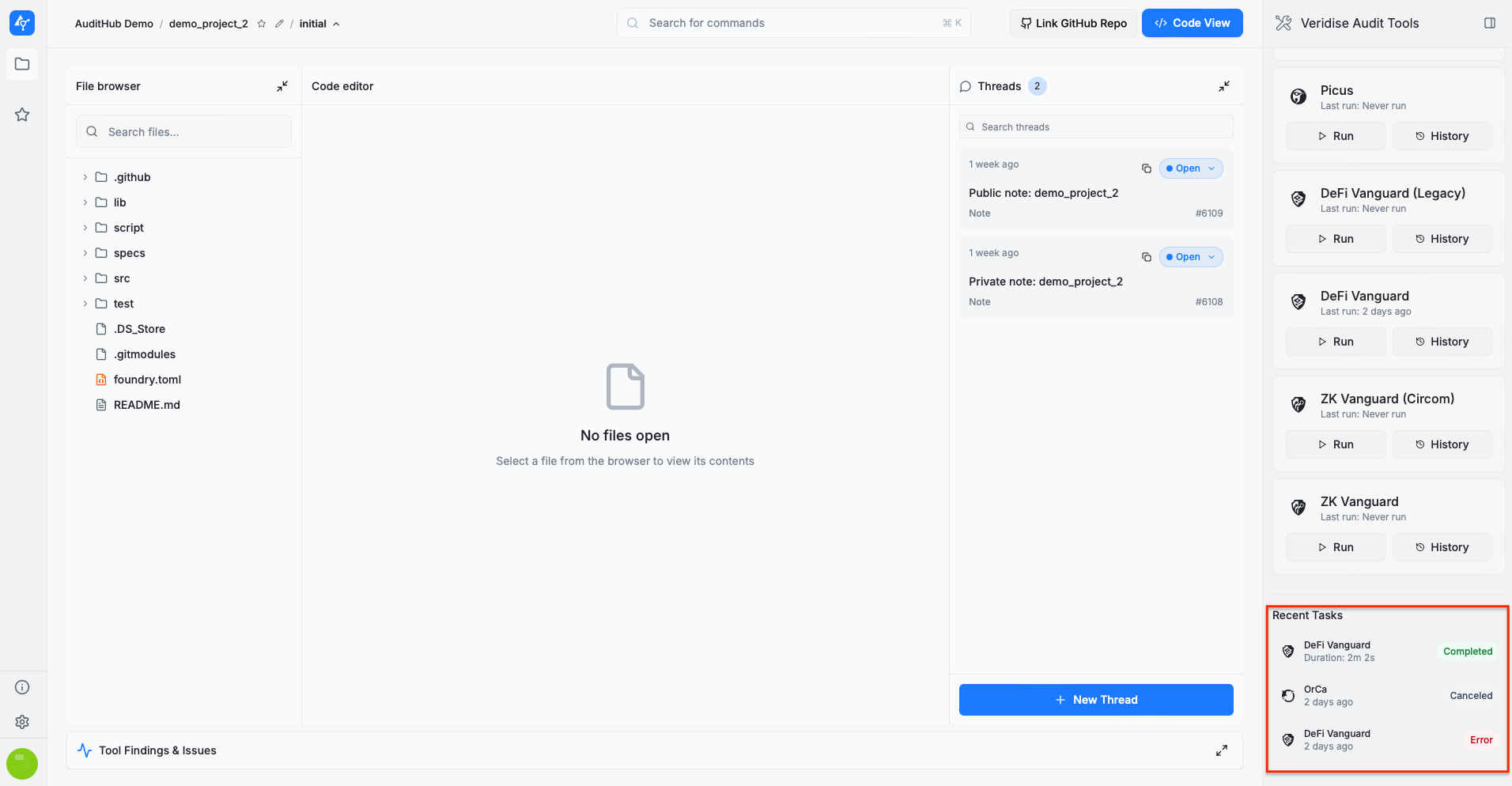
On the right sidebar, the Veridise Audit Tools section provides access to all tools available for your plan and your project definition, and allows them to be executed against the selected source code version.
Tools can be selected in two ways:
- By clicking the tool icons directly, or
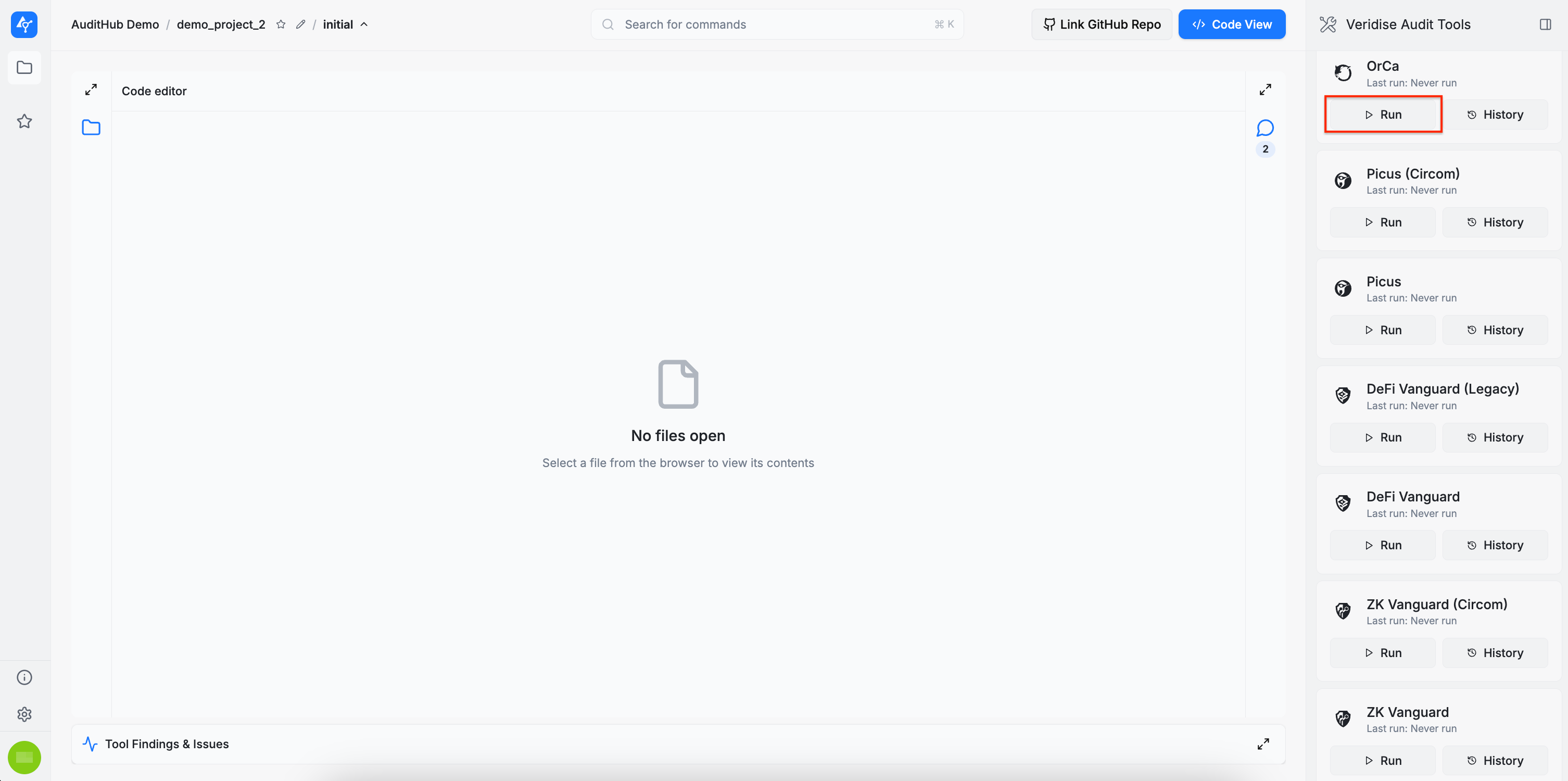
- By expanding the Veridise Audit Tools section using the tools icon in the upper-right corner. This opens a detailed menu where each tool can be started using the
Runbutton.
Tasks
For more details on tasks, see Tasks. This section focuses on how to run tasks and review their output. Both methods presented above open a task wizard.
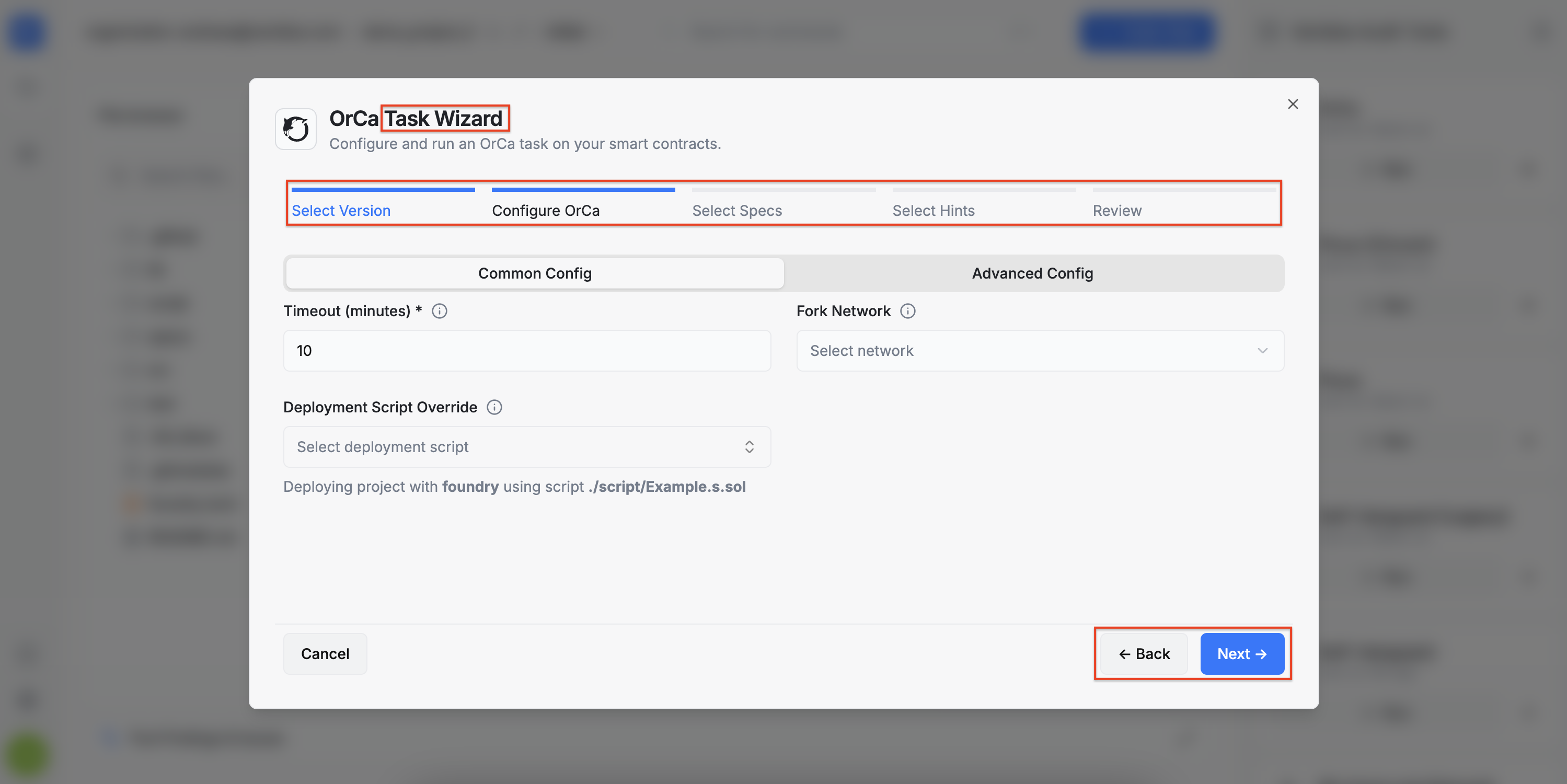
This documentation does not cover the detailed configuration options of each tool’s task wizard, as these are explained on the individual tool pages.
Recent Tasks
Scrolling down in the Veridise Audit Tools section reveals the Recent Tasks area, which displays the three most recently executed tasks.
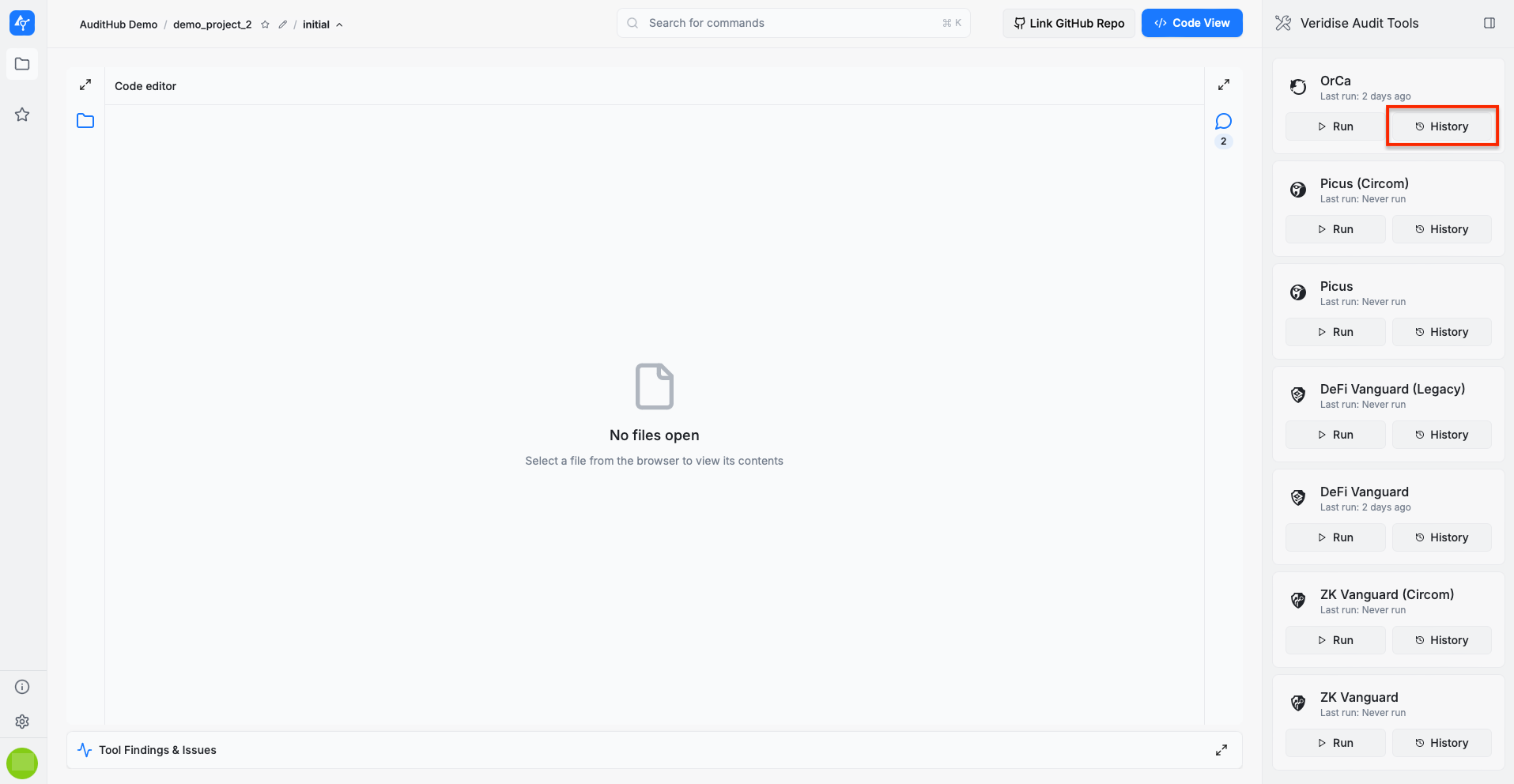
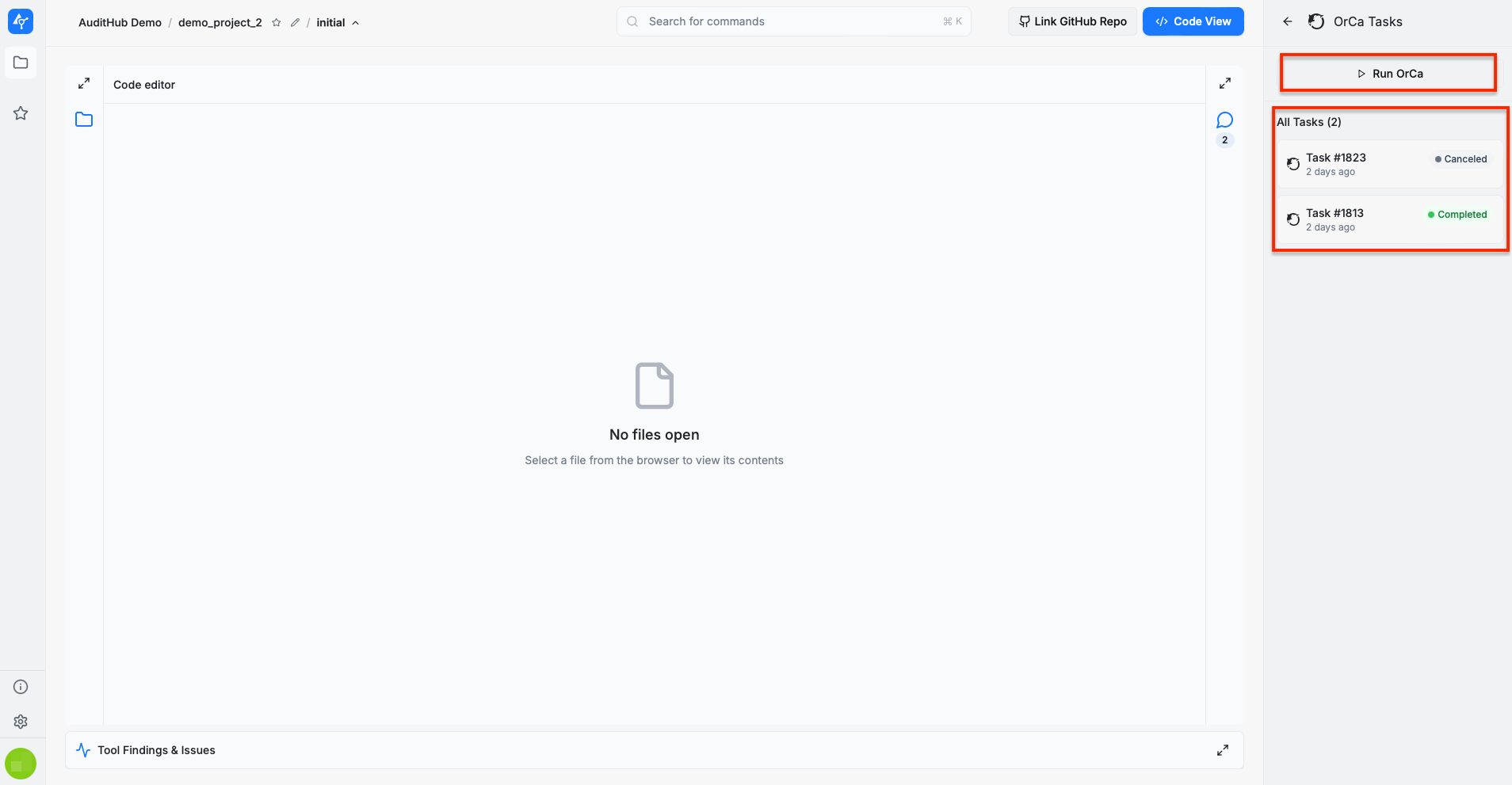
To view all tasks for a specific tool, select the tool of interest and click the History button. This opens a list containing all tasks associated with that tool.
Task Summary
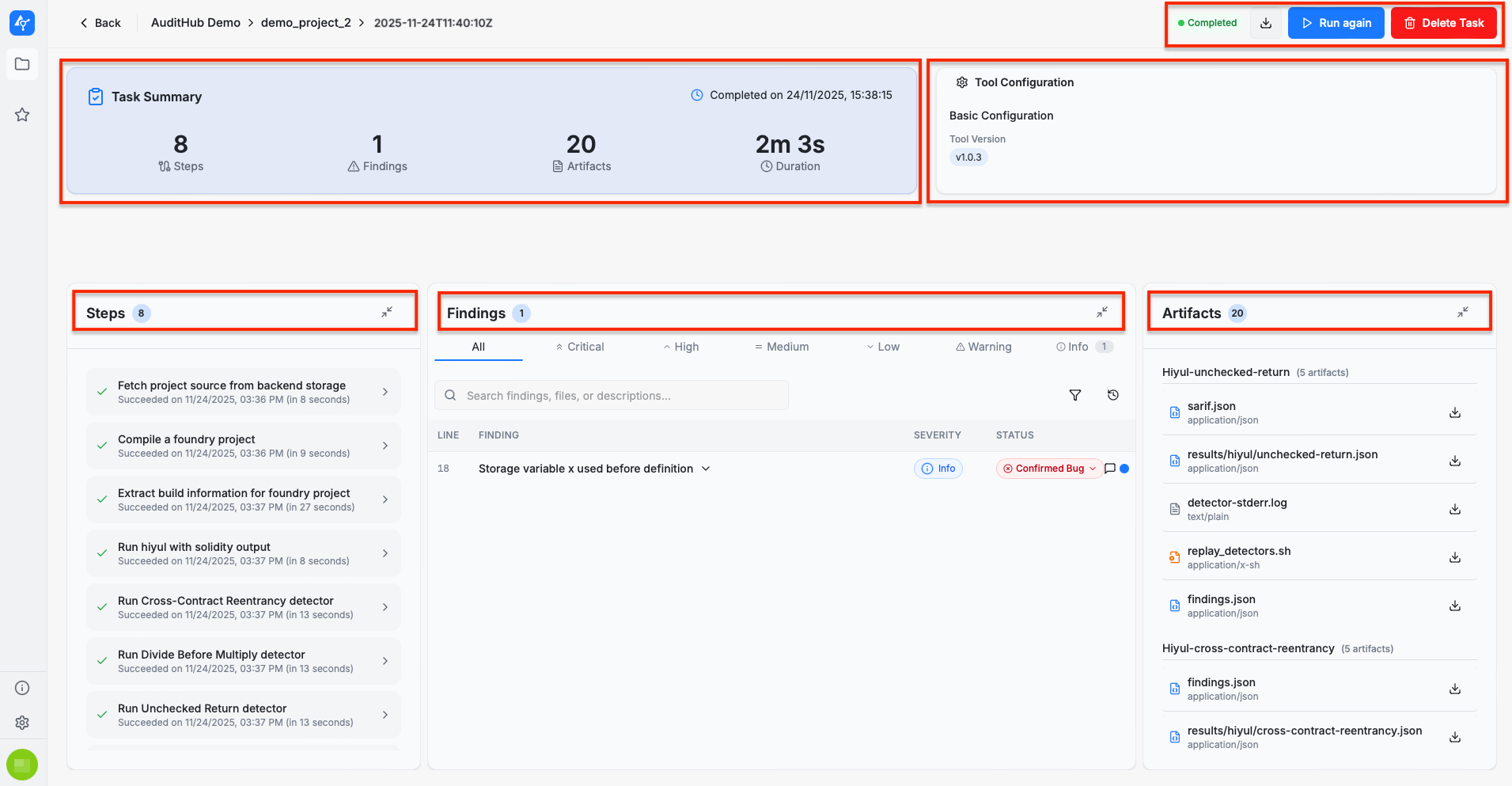
Clicking a task opens the Task Summary view, which provides an overview of that task’s execution. Each element of this page is described in the following sections.
Task Selection
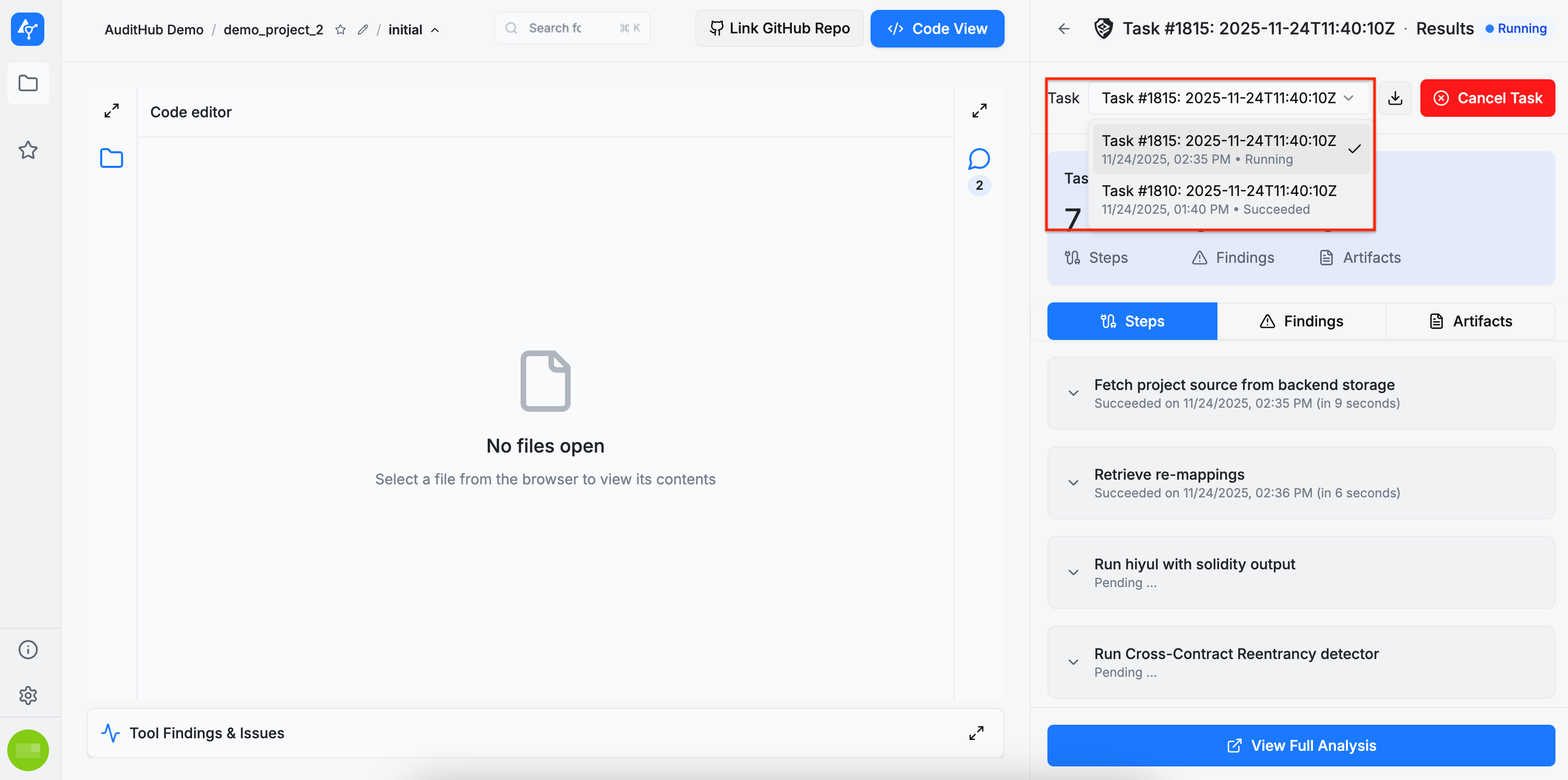
To switch between tasks belonging to the same tool, you can expand the Tasks dropdown and select the desired entry. However, to view tasks from a different tool, you need to return to the Veridise Audit Tools section by clicking the back arrow.
Task Actions
Three actions are available for tasks:
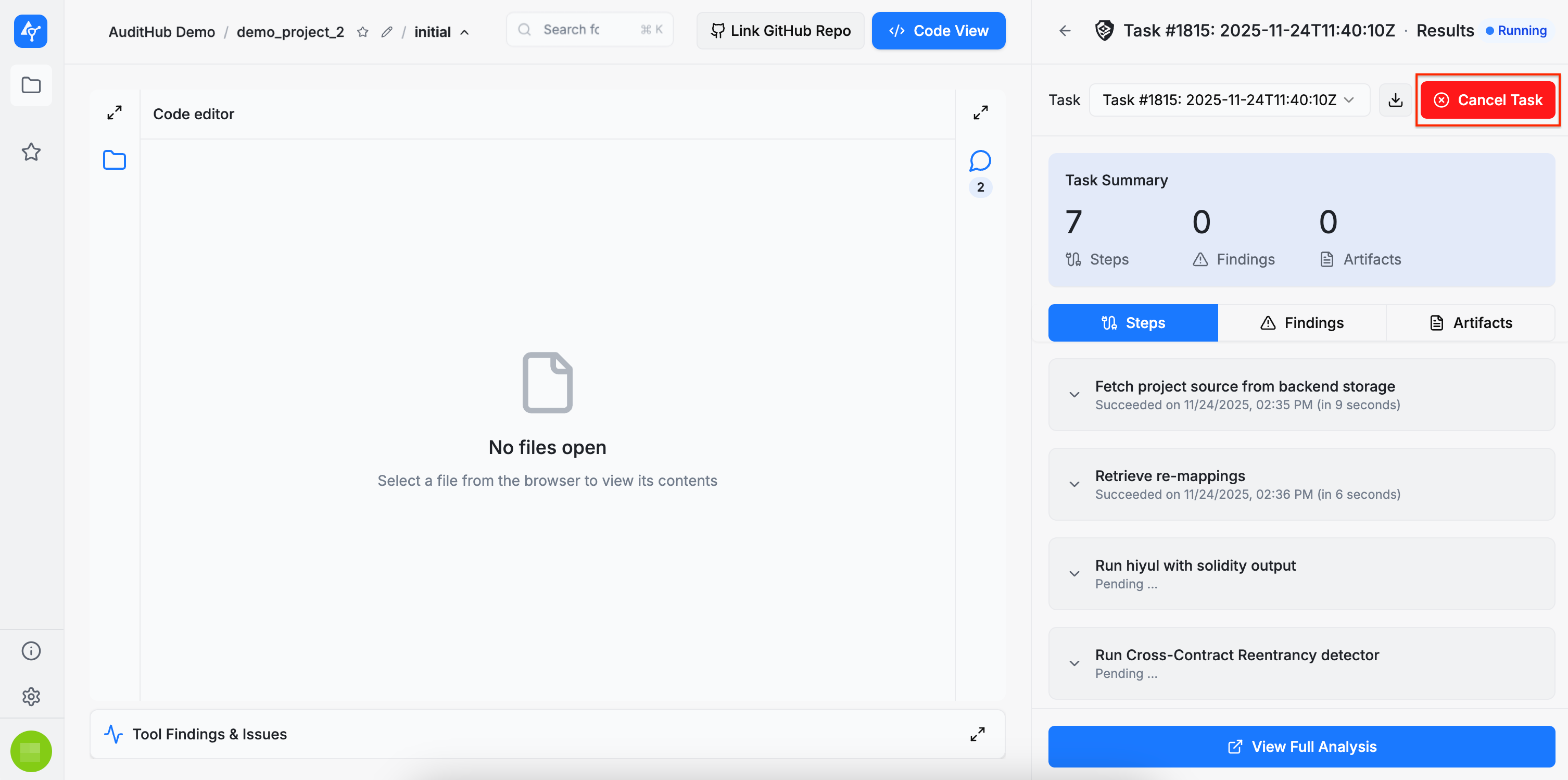
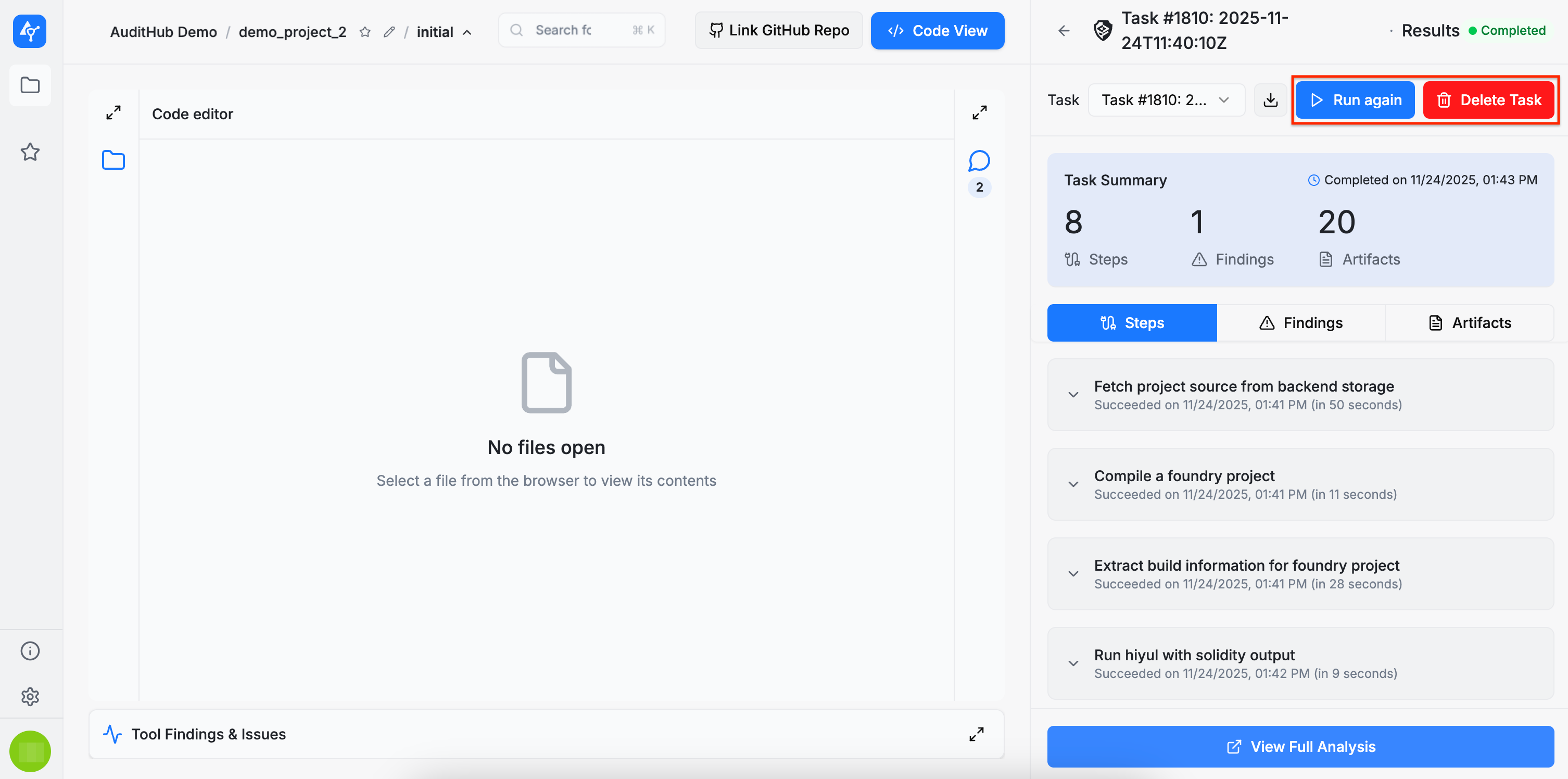
CancelRun AgainDelete Task
A running task can be canceled at any time. When canceled, its status changes to Canceled, and its progress stops.

After a task finishes its execution (whether Canceled, Completed, or Errored), it can be run again. Selecting Run again opens the task wizard with all configuration options preloaded from the previous run.
A task can also be deleted at any time after it has finished by clicking Delete Task.


Task Steps
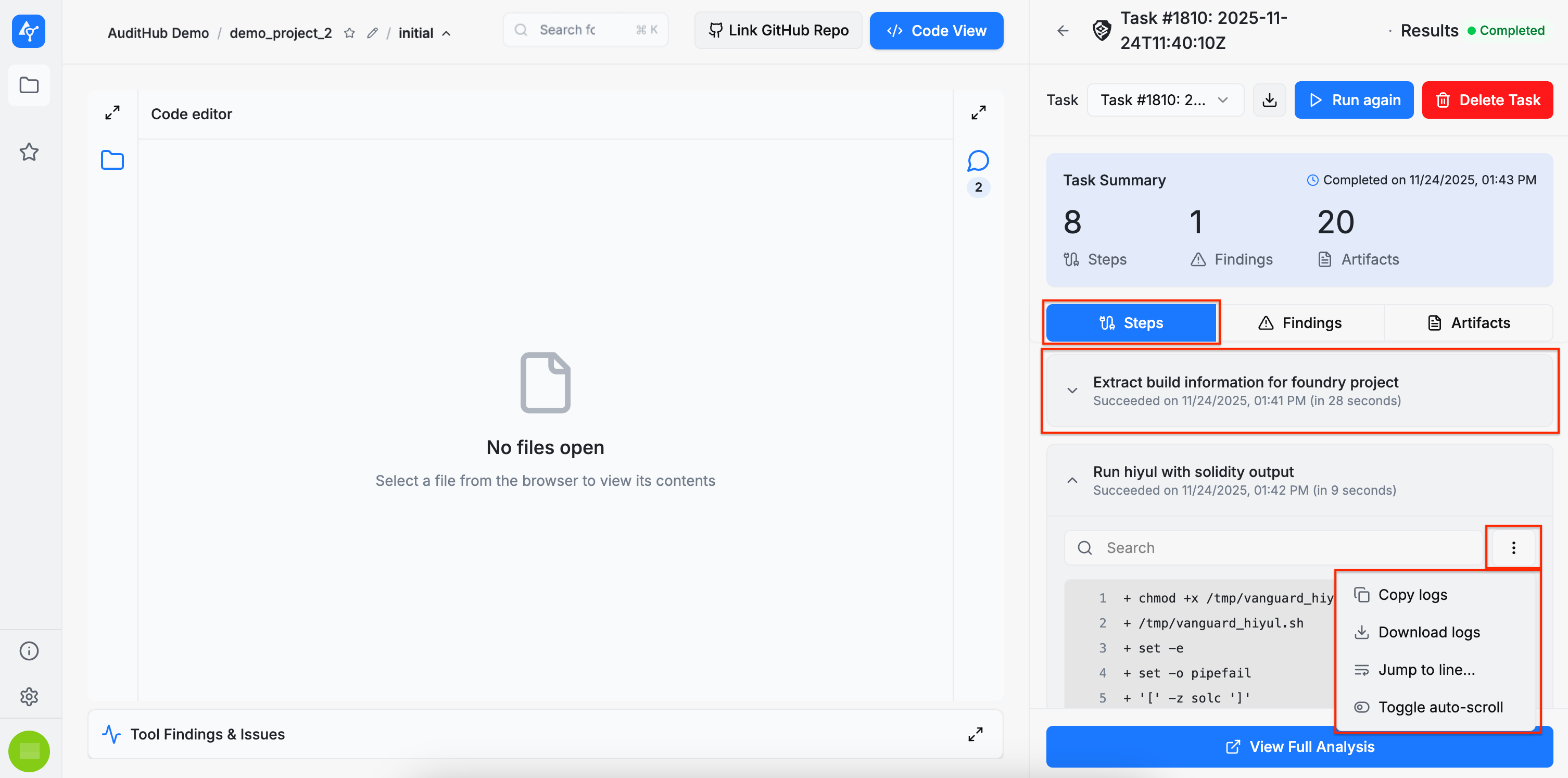
Depending on the tool being executed, a task may consist of multiple steps that run either sequentially or in parallel. As shown below, each step provides its logs. Logs can be searched, navigated by line number, copied, or downloaded. These options are available from the three-dot menu in the step box.
Task Findings
After finishing the execution, a task may produce findings. For more details, see Findings. This section focuses on how to review and triage them.
Each finding references the specific location where a potential issue was detected. Clicking the line indicator (i.e., jump to line) will open the file in the Code editor with the corresponding line highlighted.
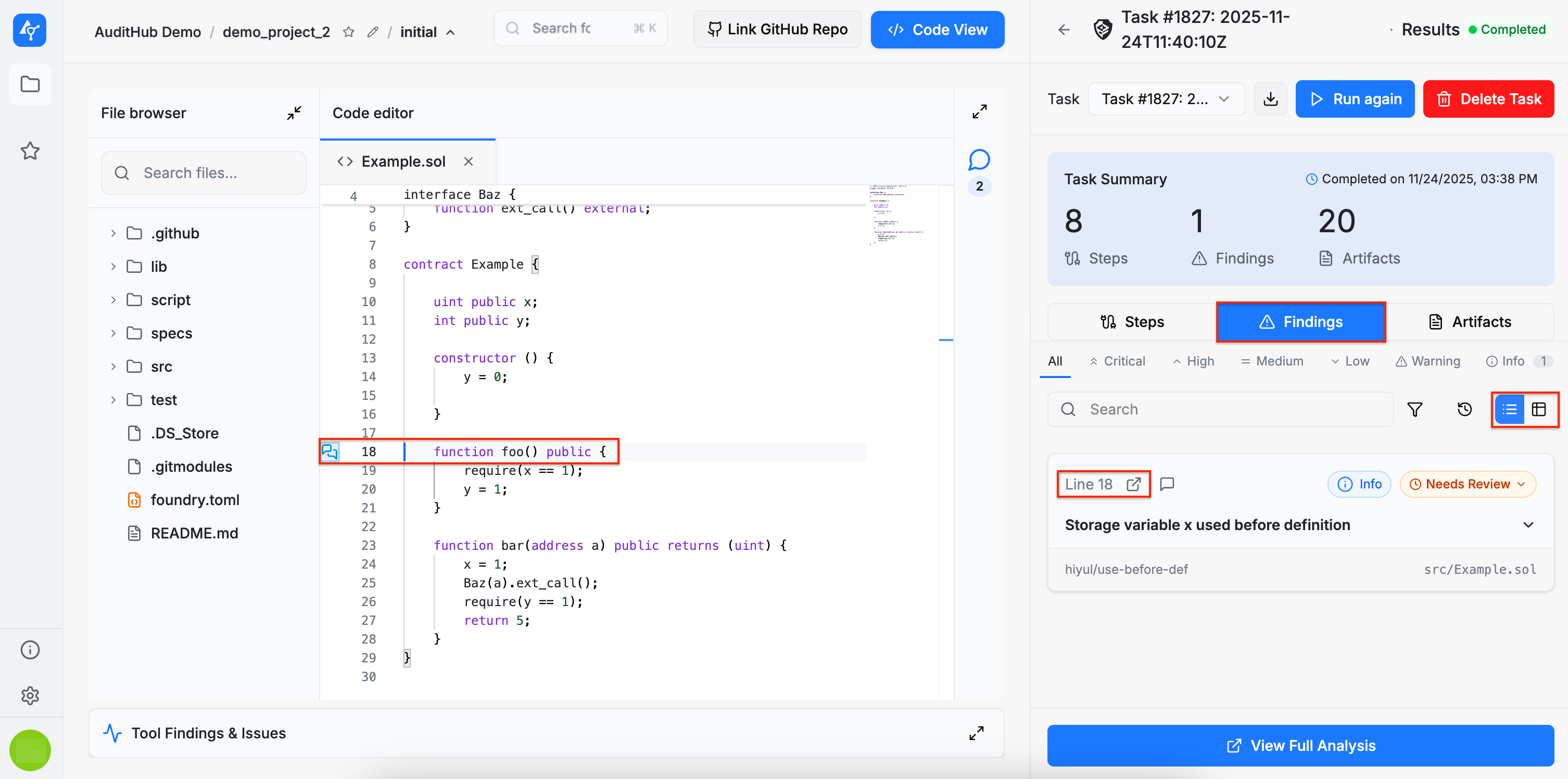
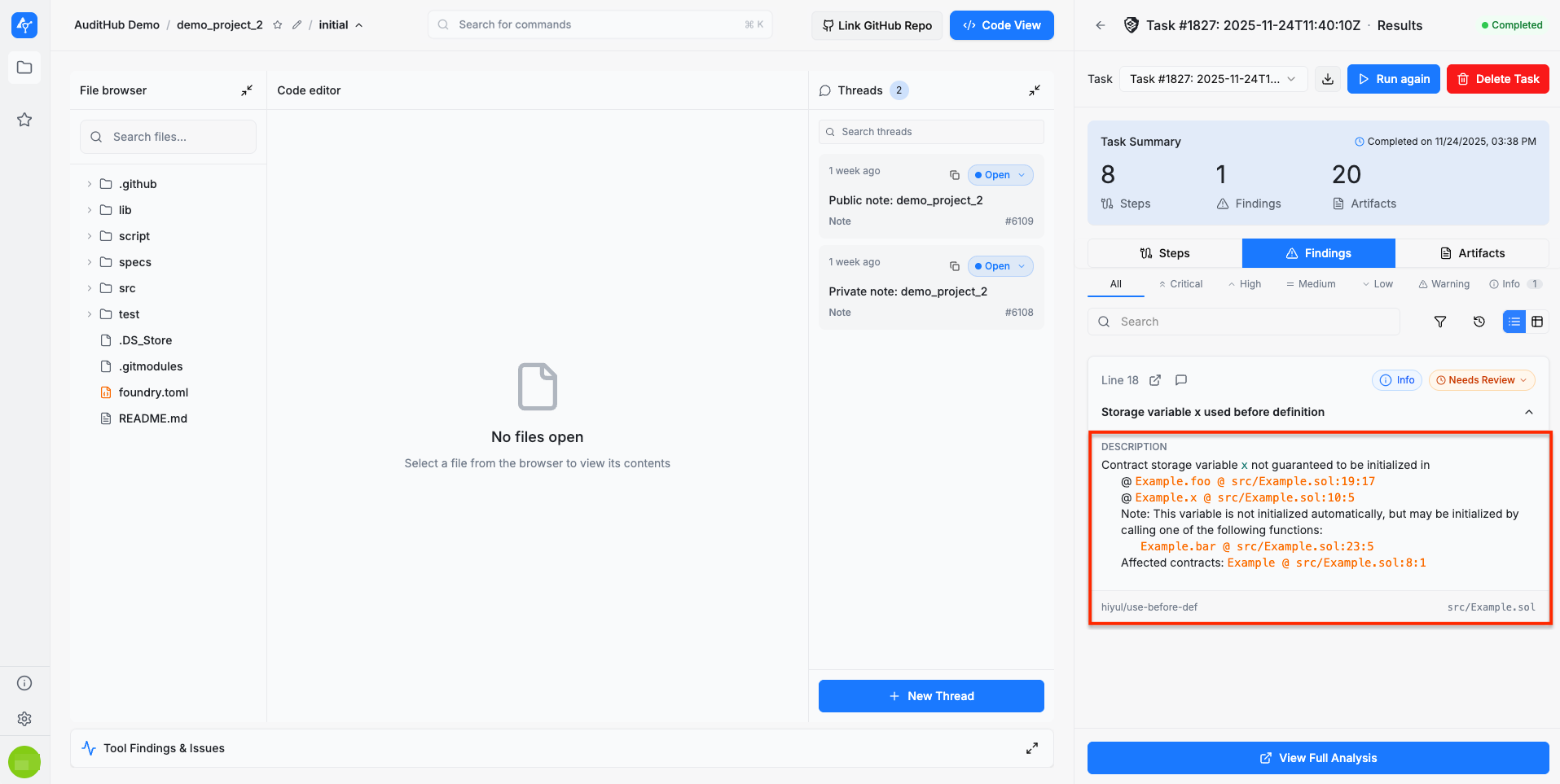
Findings can be reviewed manually. Each one includes a detailed explanation that breaks down the issue step by step to help identify the root cause.
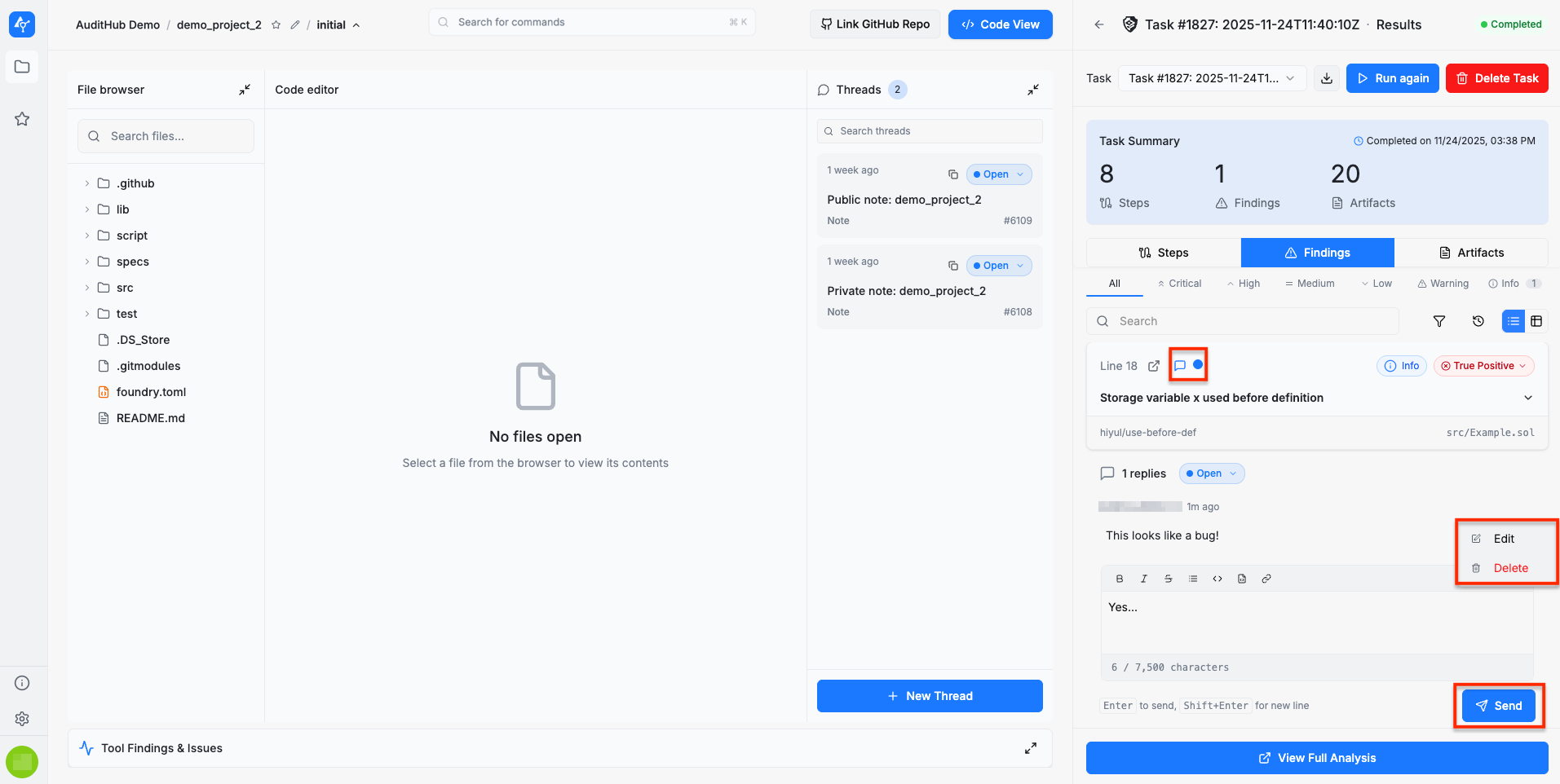
The involved parties can also start a discussion directly on a finding to collaboratively assess it. Shared messages within the discussion can be edited or deleted as needed.
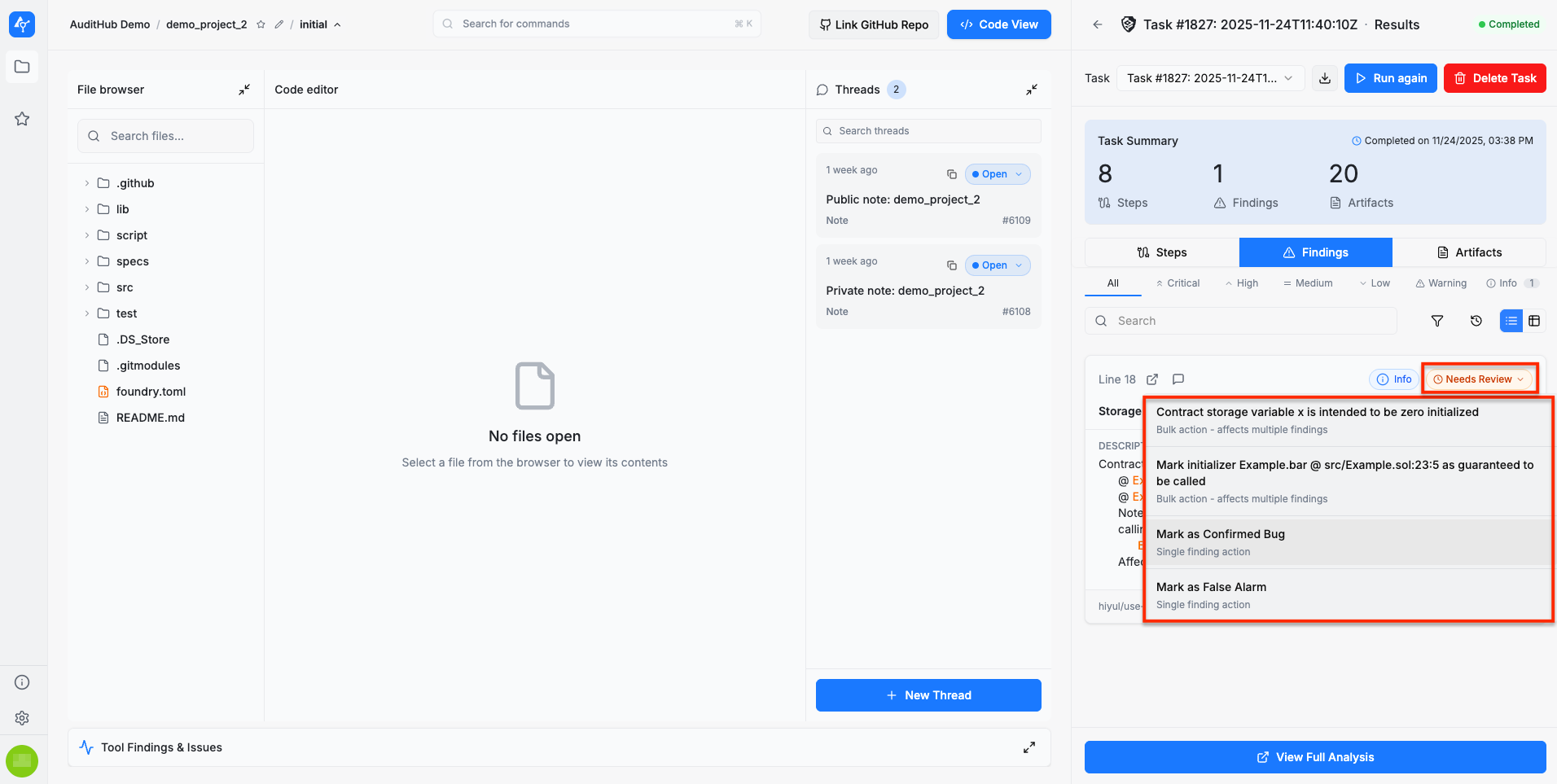
Once a conclusion is reached, the finding can be moved to the triaging stage, where it may be marked as a true positive, false positive, or assigned another appropriate status.
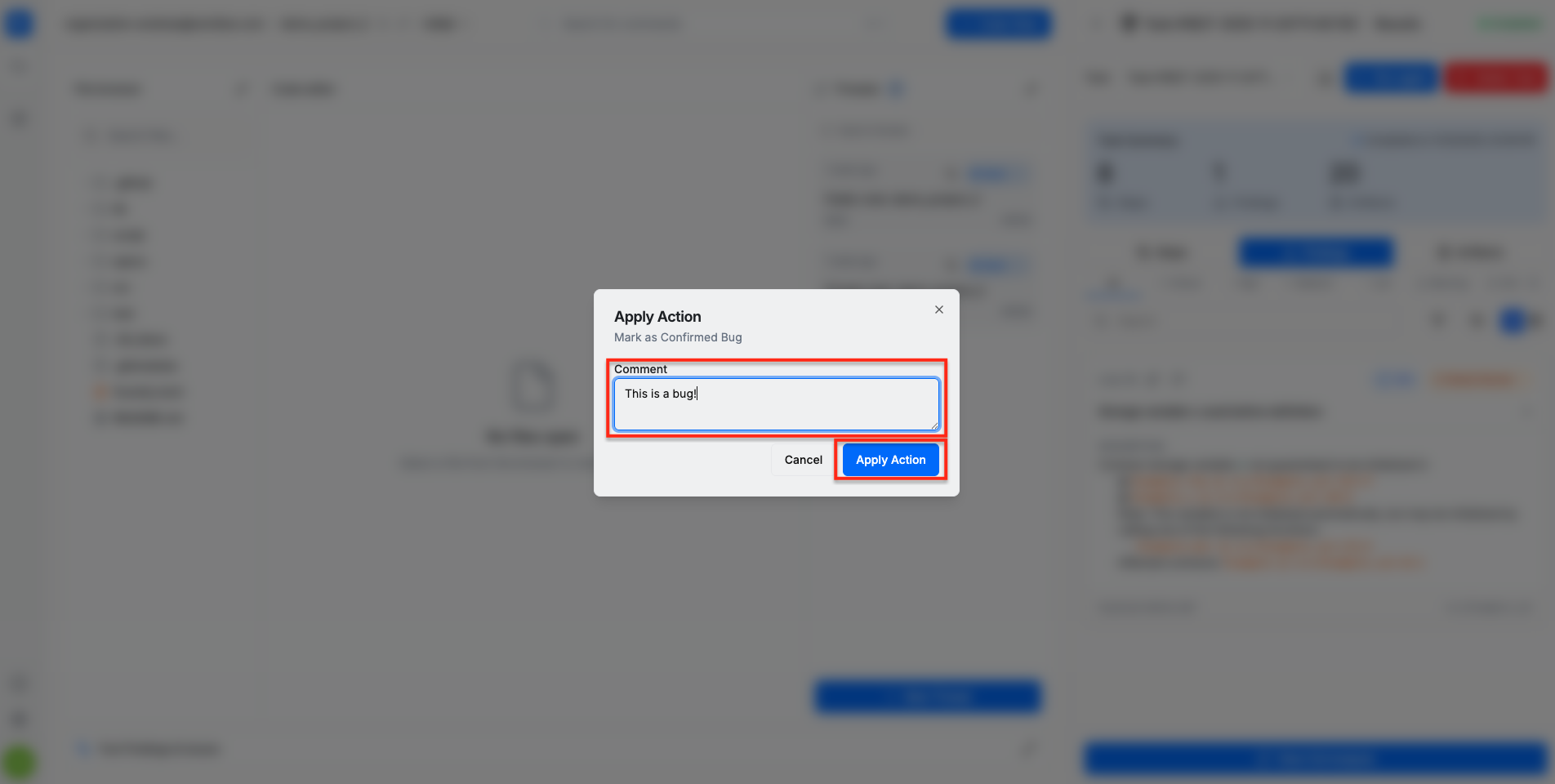
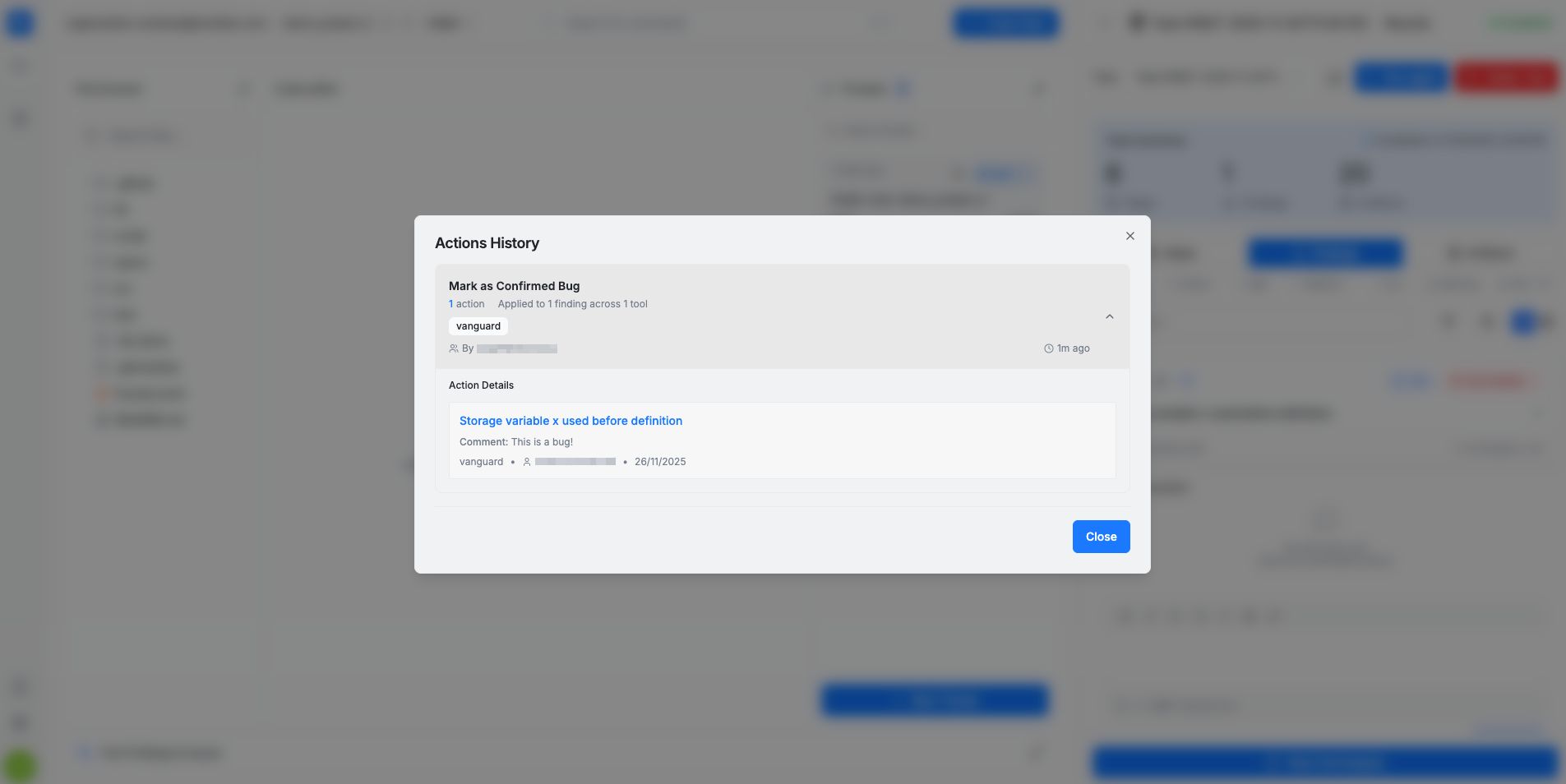
To review all triaging actions, users can inspect the action history. Each entry documents the performed action, the author, and any arguments provided when categorizing a finding.
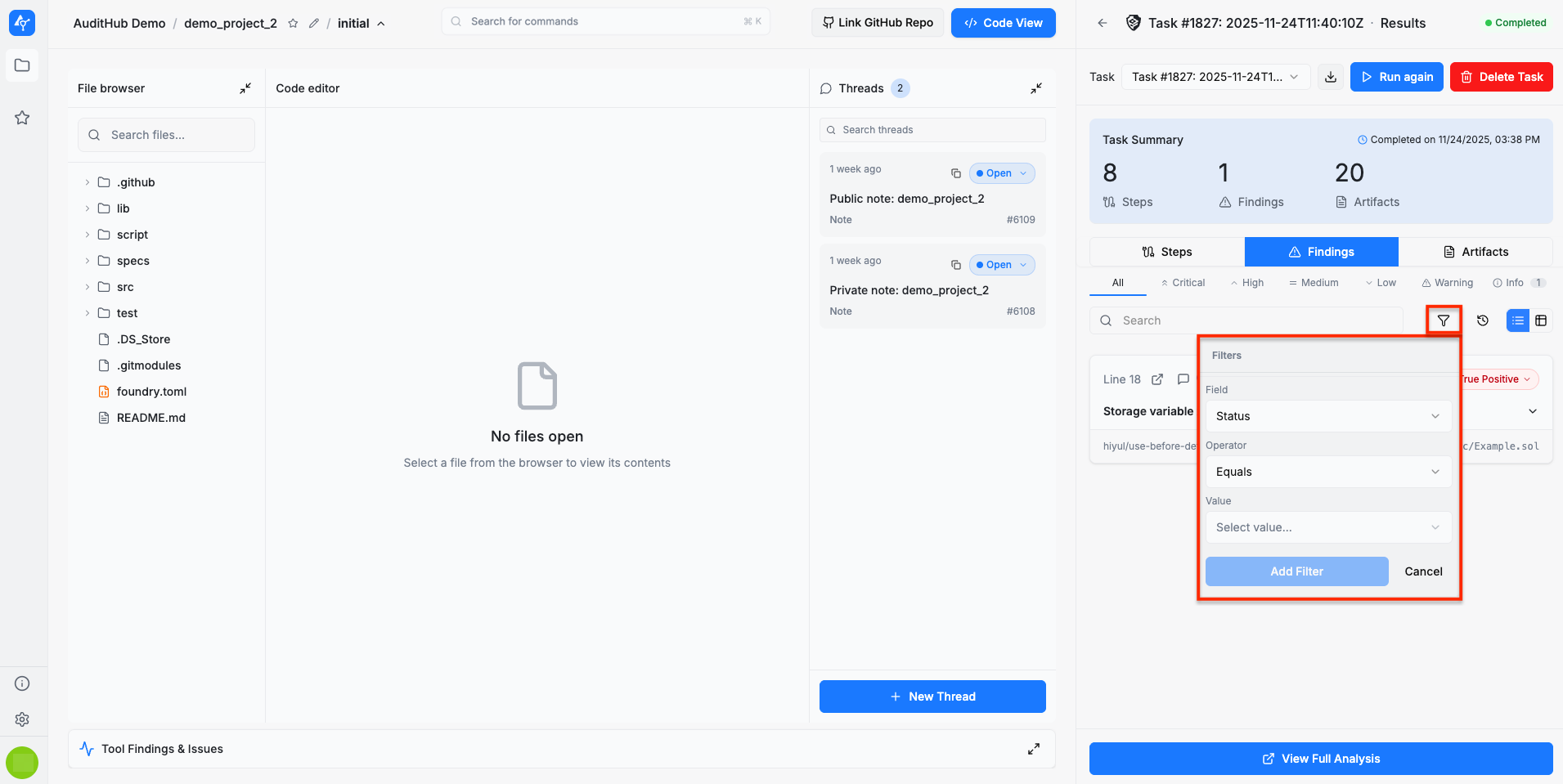
Findings can also be filtered to help narrow down specific categories or areas of interest.
Task Artifacts
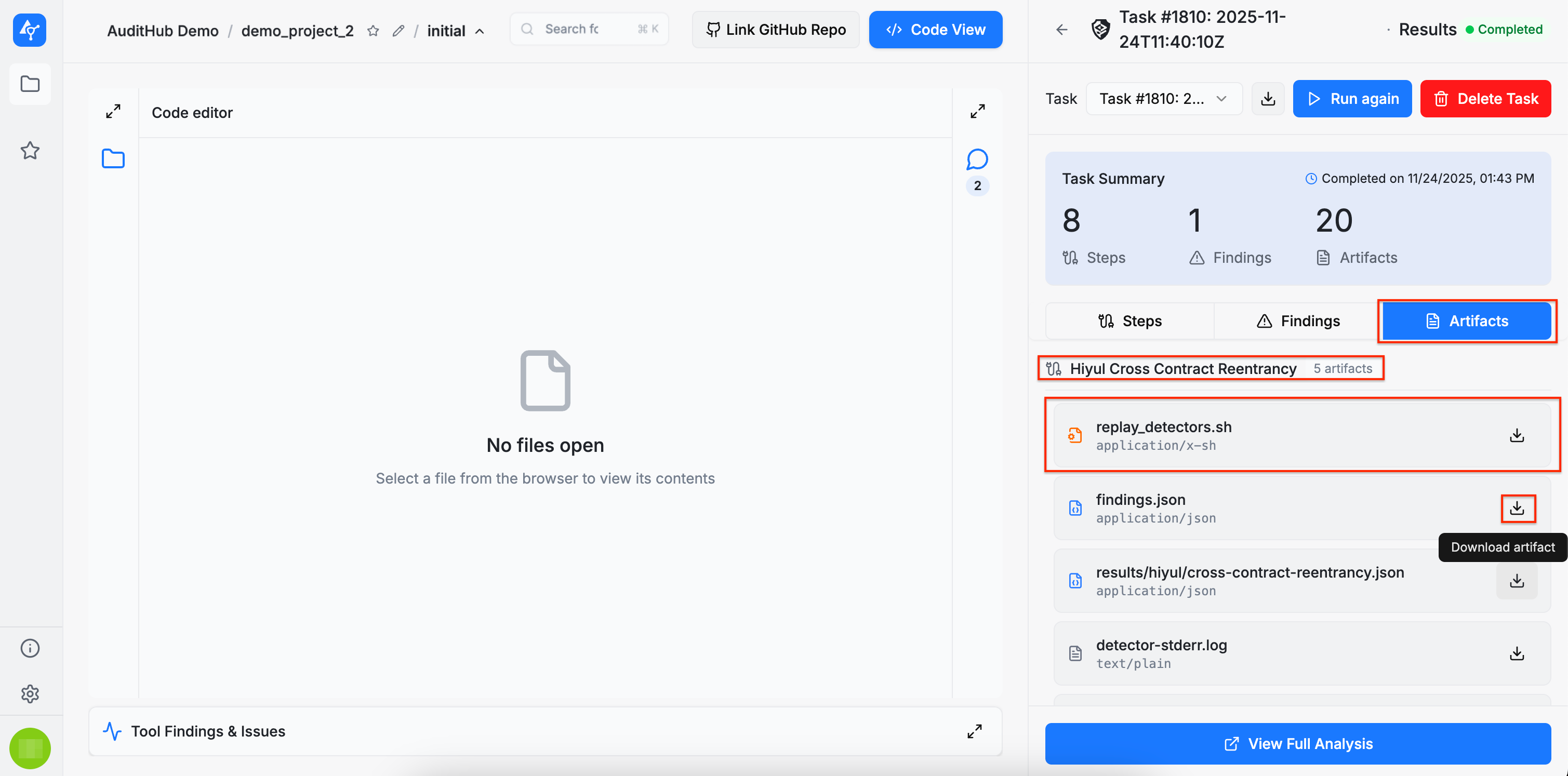
Depending on the tool, task steps may produce artifacts that can be downloaded and inspected afterward. These artifacts represent additional outputs generated during execution and may be useful for support purposes.
Download Version
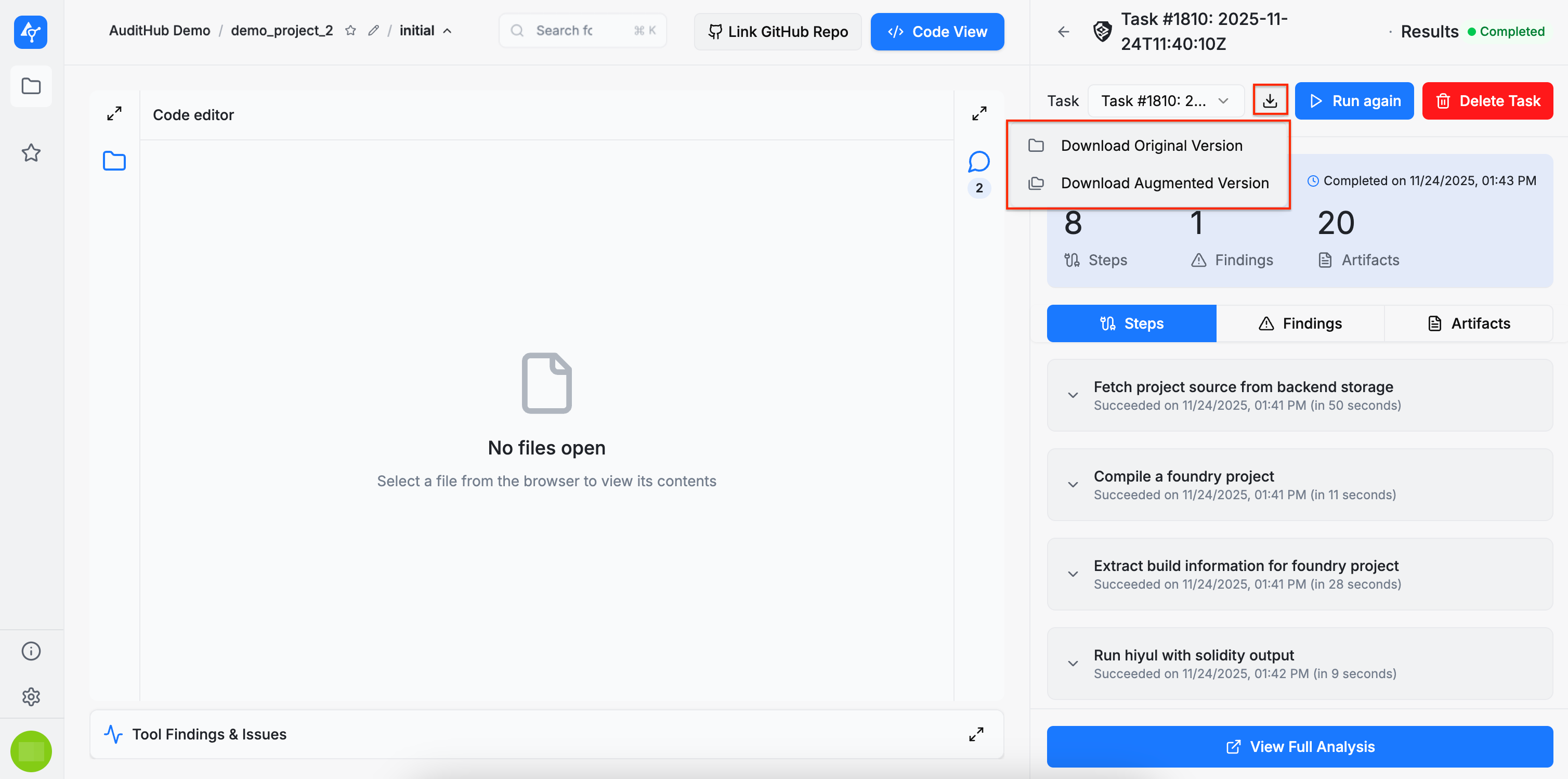
Users can download either the original source code version or the augmented version, which includes the artifacts generated during execution. This can be done by clicking the download button located next to the task actions, as shown below.
Full Analysis
The Full Analysis page includes all previously described sections, with the added ability to expand or collapse them for easier large-scale review. This page also provides a Tool Configuration section, which lists all the options used when the task was submitted, allowing users to reference the selected configuration settings during their analysis.