Triaging Findings
In this page, we will explain how to triage findings reported by Vanguard through the AuditHub interface.
Viewing Findings
After a Vanguard task is complete, any findings reported by Vanguard will be listed in the "Tool Findings" pane at the bottom of the AuditHub interface.
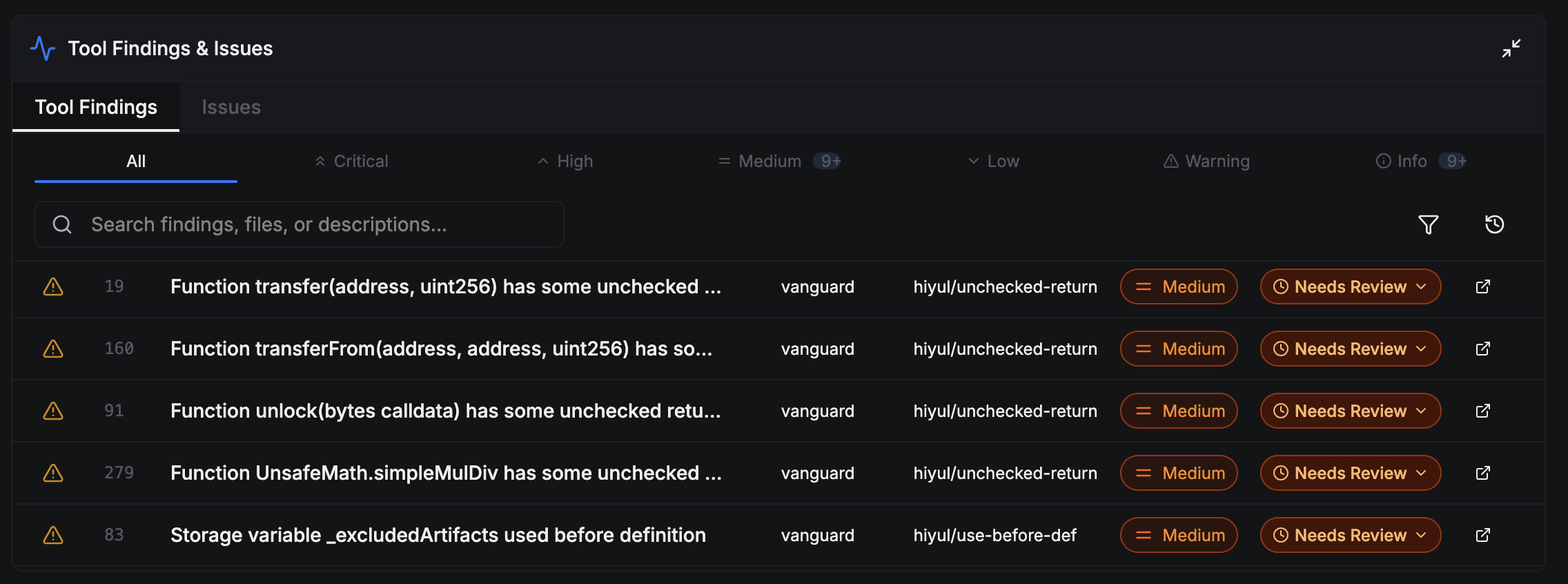
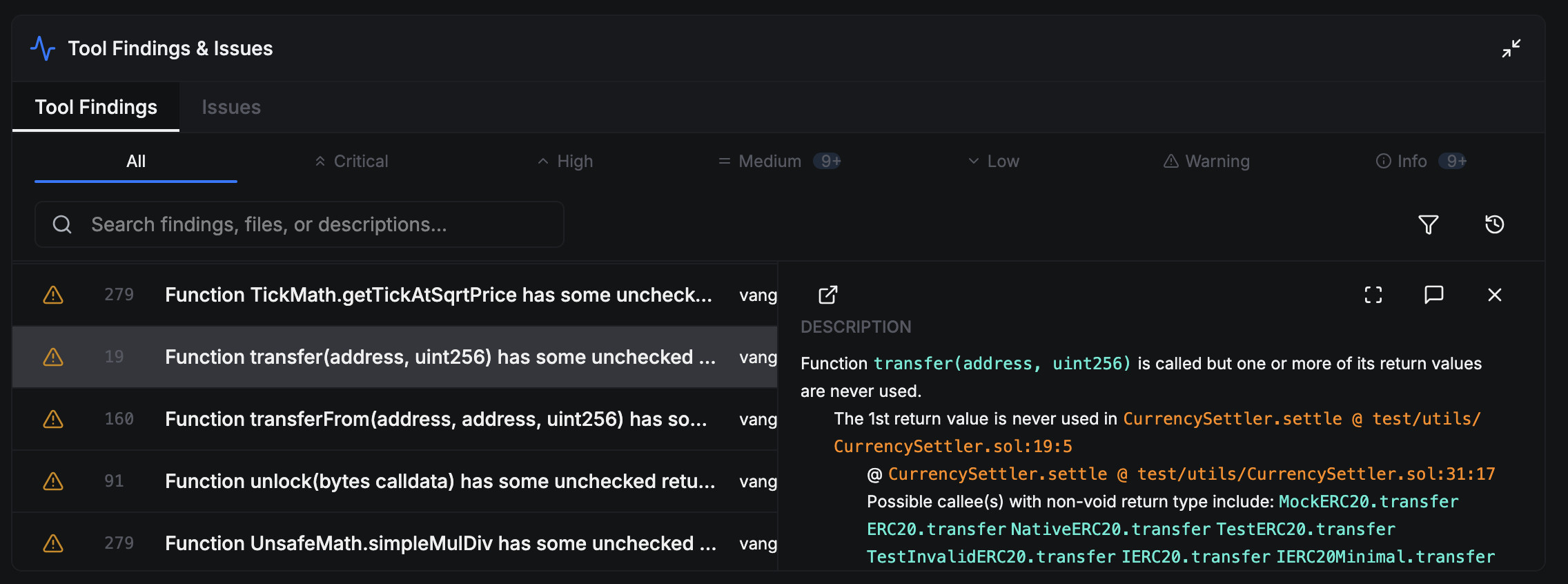
You can select any one of the findings in the table to view its detailed description, which will explain what the vulnerability is and its root causes. When viewing a description, you can click on the highlighted details, such as location information or variable names, to jump to the corresponding code locations or declaration locations in the code viewer.
Classifying Findings
When a finding is reported by Vanguard, it will initially have a status of
Needs Triage, as shown in the images above.
This means that no one has assessed the likelihood and impact of the finding
yet.
You can update the triage status by applying various types of actions
(described below).
To do so, click on the Needs Triage label in the finding label.
This will open a drop-down menu with a set of actions that can be taken to
update the triage status.
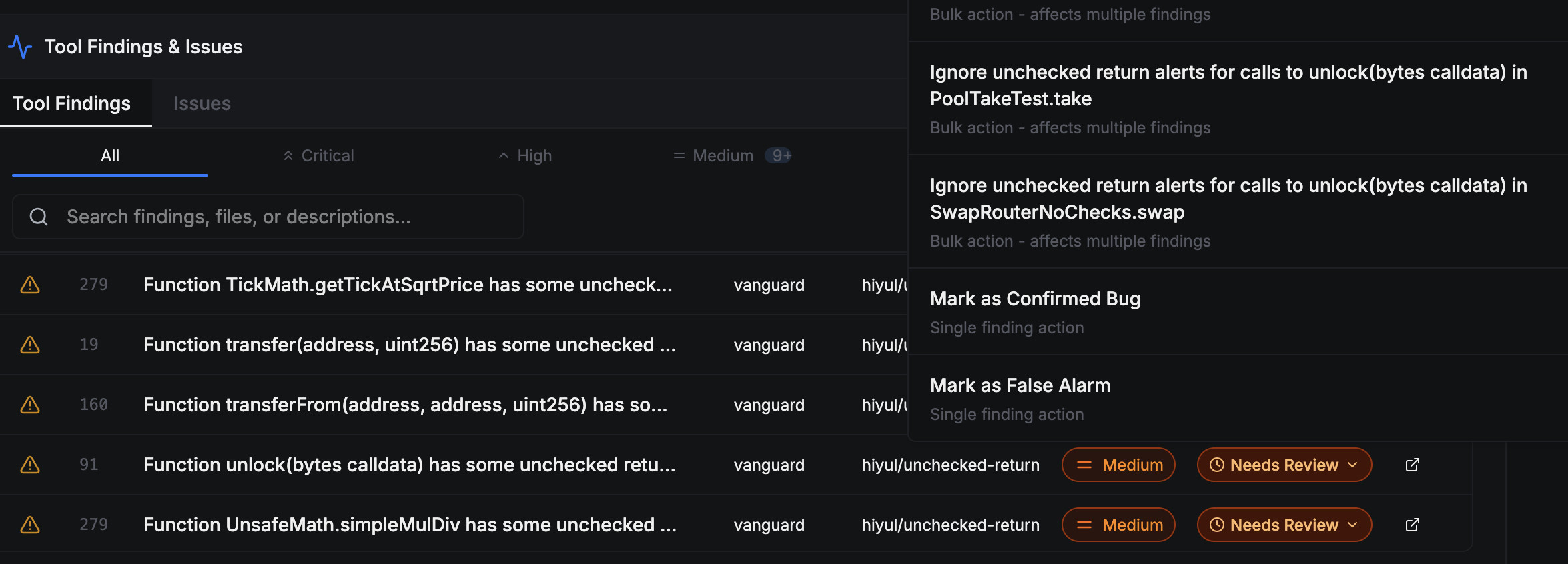
Every action requires the user to write a comment justifying why a finding's triage status needs to be updated; this helps avoid confusion in the future.
Manual Triage Actions
You can manually change the triage status of a finding into one of the following:
-
A confirmed vulnerability (CV) status indicates that the full finding description is accurate, and that it represents an actual vulnerability. Such findings must be treated seriously.
-
A false alarm (FP) status indicates that the finding reported by Vanguard is confirmed to not be an actual vulnerability. Such a finding may be invalid or has little/no security impact.
These actions are labelled as "Mark as Confirmed Vulnerable" and "Mark as False Alarm", respectively.
Bulk Triage Actions
In some cases, a finding may be partially correct, where the description may describe a confirmed vulnerability in one part but a false alarm in another. A bulk action allows you to remove the specific parts that wrong, or even the root causes that cause the finding to be irrelevant.
Bulk actions will automatically be applied to all findings reported by the same detector. This means that if you use a bulk action to eliminate the root cause of a finding, the action will also be applied to other findings produced by the detector–including ones run in the past and in the future.
For example, if the Unchecked Return detector reports that the return value of a function call is not used, but it does not actually matter whether that return value of that function is used, then a bulk action can be applied to suppress all such reports related to that function.
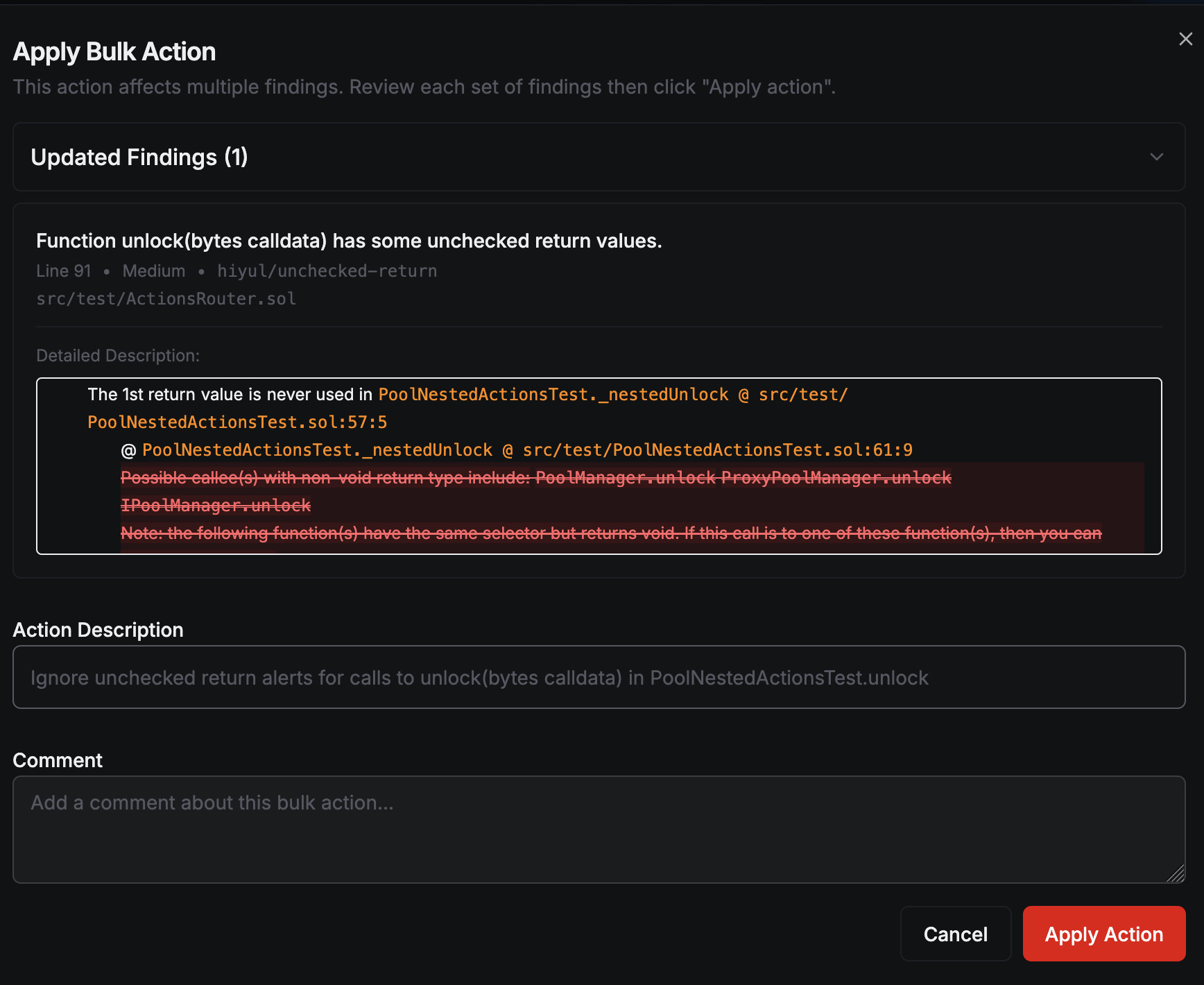
After a bulk action is applied, the descriptions of the affected findings will
be updated.
Suppressed details in the description will be shown with a strike-through.
Furthermore, if a finding is fully suppressed, then its triage status will
automatically change to False Alarm.
Actions History
A record of all previously applied actions can be displayed by clicking on the "Action history" bar at the top of the Tool Findings panel. Here, you will be able to see what actions were applied in response to which findings, who applied the actions, and the justifications. This is helpful for undoing errorneously applied actions, or for performing a post-mortem after a security breach.
Soundness vs Completeness
Because it is theoretically impossible to create a static analysis tool that can detect all vulnerabilities with perfect accuracy in general, tool authors need to make a trade-off between (1) the degree to which the analyzer is confident that a given program is free from vulnerabilities (soundness) and (2) the degree to which the issues found are actual vulnerabilities (completeness). In plain words, a sound tool is always correct when it says that there are no vulnerabilities (but may raise false alarms on some programs), and a complete tool is always correct about the things it says are vulnerabilities (but it may miss some legitimate vulnerabilities).
The principle behind Vanguard's design is that it is better to alert the user to potential vulnerabilities—even if some of those may be false alarms—rather than risk the possibility of missing a vulnerability. That is, Vanguard's detectors are designed to be closer to the soundness part of the spectrum rather than the completeness part of the spectrum. To make up for the shortcoming of having false alarms, we provide the user with the triage tools described on this page, so that the user can effectively classify the findings and remove all false alarms, so only legitimate vulneabilities remain.
If you would like to learn more soundness and completeness, an excellent article on the subject can be found here.